The Celestia theme
Files
- beamerthemeCelestia.sty Beamer theme
- beamerthemeCelestia.pdf PDF documentation
- beamerthemeCelestia.tex Doc source (EN)
- celestia-demo-en.pdf Demo PDF
- celestia-demo-en.tex Demo source (EN)


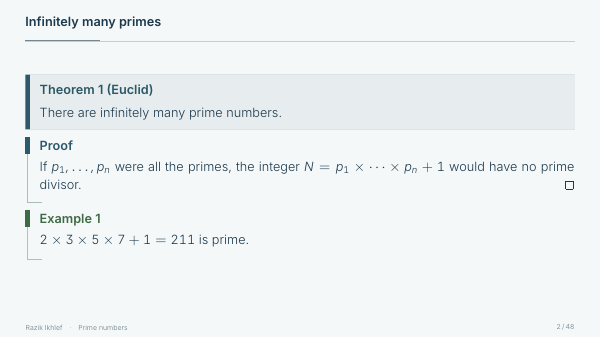
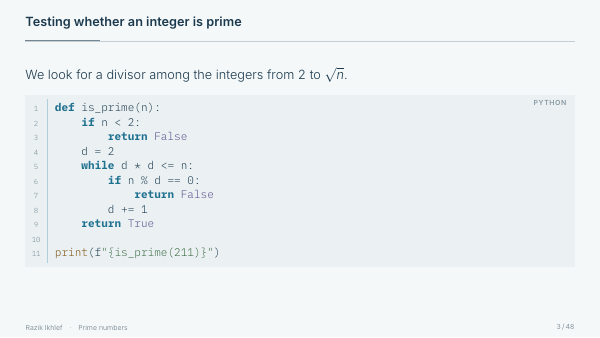
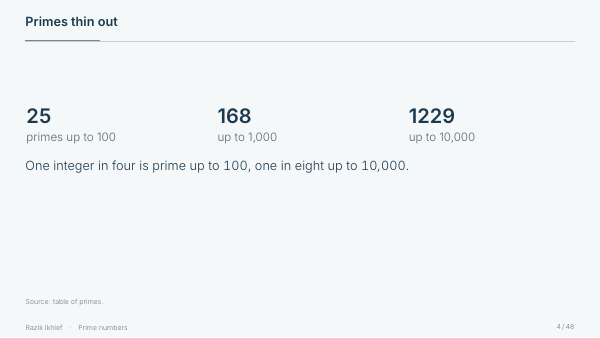
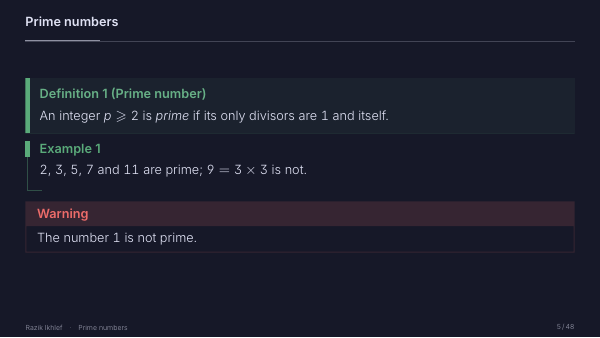
The Celestia theme is a modern, elegant Beamer theme designed to produce professional and visually appealing presentations. It offers extensive customization while remaining straightforward to use.
Its settings are given when the theme is loaded; most of them can also be changed in the course of the document, for a single slide or for a whole part.
- Blocks arranged by role: a panel for what must be known, a mark for what goes with it, a rule for exercises. The theme has 23 block styles, adjustable per family.
- Environments for teaching: definitions, theorems, methods, activities, exercises, summaries, multiple-choice questions, source code.
- Ready-made sets: 7 color palettes, 6 preset styles, 10 frame title styles, 11 footer styles.
- Three engines: LuaLaTeX, XeLaTeX and pdfLaTeX.
Introduction
Basic usage
\documentclass{beamer}
\usetheme{Celestia}

\title{My presentation}
\author{John Doe}
\date{\today}

\begin{document}
\maketitle
\end{document}
Compilation
The Celestia theme is designed to be compiled with lualatex or xelatex for full font management through fontspec. A pdflatex compatibility mode is also available.
Coming from version 1.2
Version 2.0 changed the default look: ruled frame titles, large light titles and a motif of discs on the title page and the section pages. Version 2.1 gives each family of blocks a style suited to its role (a pale panel, a mast mark or a ruled title) and one color per type of block; code takes a hairline (hairline) and its lines are numbered in wide blocks. Version 2.3 lightens the code: a faint background (soft), a hairline only with line numbers, no background in blocks, and the code, code* and results environments; the native beamer blocks take a thin frame (framed). The default palette (nordic) and the colors of the palettes are unchanged, with one exception: the block color of velvet, now a plum. The theme now presents ten palettes and six preset styles; the others are still accepted. The following settings give the look closest to version 1.2:
\usetheme[
    frametitle=subtle, block=sober,
    codestyle=bar, codenumbers=false,
    titlesize=LargeLARGE, sectiontitlesize=LARGE,
    titleweight=bfseries, motif=false
]{Celestia}
Language
The language option
Sets the presentation language, which is automatically passed to the babel package. In french mode, the names of mathematical environments (theorem, definition, etc.) and code listing captions are automatically translated.
Default: english
Without this option, the theme follows the language of the document: that of babel or polyglossia, loaded before or after the theme, or the class option (\documentclass[french]{beamer}). It loads babel itself only when the document does not. When neither language nor the class option names the language, this loading waits for the end of the preamble: to use a babel command there (\frenchsetup, \addto\captionsenglish), load babel yourself or give the language option.
\usetheme[language=french]{Celestia}Preset styles
The style option
The theme provides preset styles that automatically configure several options (palette, frametitle, footerstyle, block) for a cohesive look.
Available styles
- celestia: palette nordic, frametitle ruled, footerstyle info, block roles (the default look);
- modern: palette nordic, frametitle subtle, footerstyle info, block sober;
- signature: palette petrol, frametitle cosmic, footerstyle cosmic, block fullbar;
- executive: palette palatial, frametitle leftbar, footerstyle fullbar, block fullbar;
- sober: palette terracotta, frametitle gradient, footerstyle info, block sober;
- stage: dark palette midnight, frametitle ruled, footerstyle minimalist, block ribbon, emphasis accent, larger frame titles.
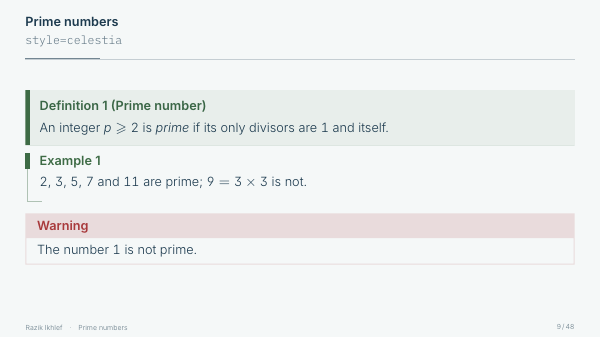
celestia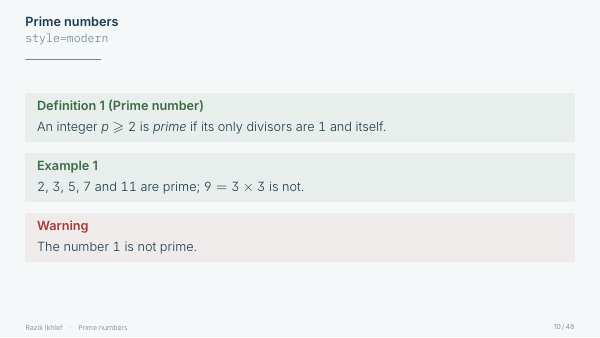
modern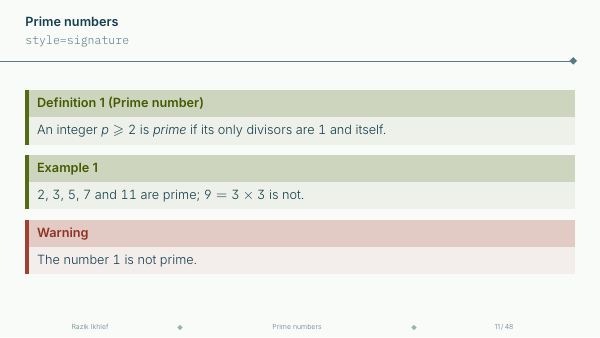
signature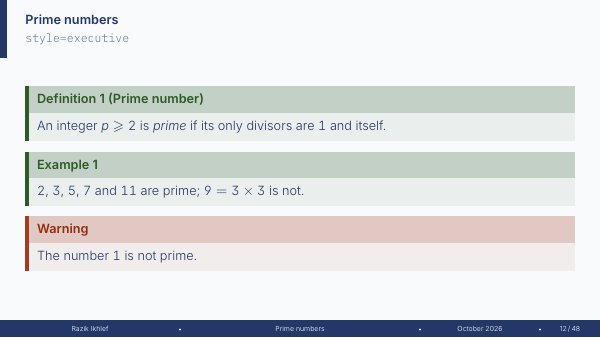
executive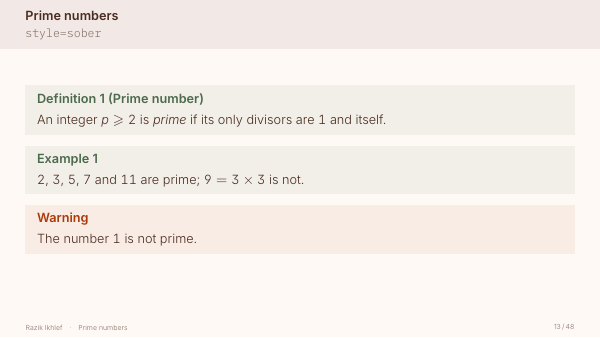
sober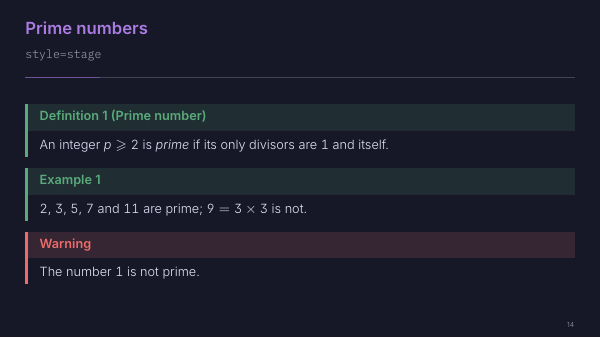
stage\usetheme[style=signature]{Celestia}Individual options can be added to the style for further customization. An option given explicitly always overrides the setting of the style, whatever the order of the options:
\usetheme[style=modern, palette=petrol]{Celestia}Styles of versions 1.x
The eight other styles of versions 1.x are still accepted, with their settings and their colors: minimal, studio, academic, design, simple, editorial, lumiere and chalk.
Color palettes
Built-in palettes
The theme ships with ten palettes. Each palette automatically defines six colors: primary (main), accent, standard block (blockcolor), example (examplecolor), alert (alertcolor), and background (background).
The palette option
Default: nordic
Available palettes
- nordic: icy Scandinavian blues (default);
- palatial: midnight blue with gold accents;
- petrol: petrol greens with brass accents;
- terracotta: warm terracotta tones;
- velvet: dark plum with gold accents;
- forest: forest green with copper accents;
- burgundy: burgundy with gold accents;
- graphite: graphite grey with an orange accent;
- midnight: light text on a deep indigo background;
- dusk: light text on a dark teal background.
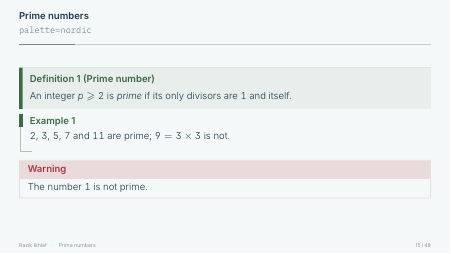
nordic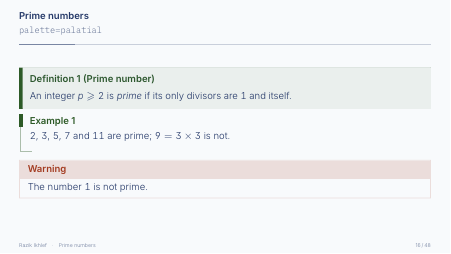
palatial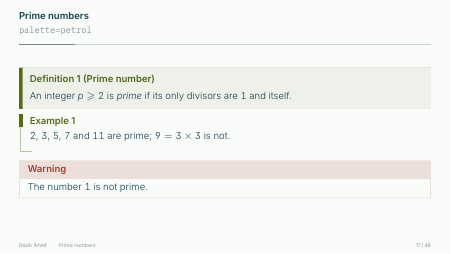
petrol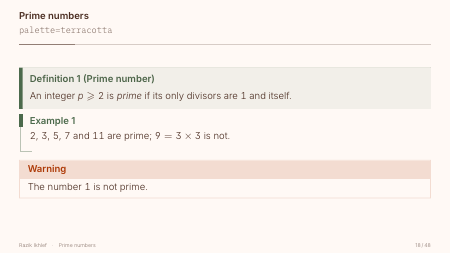
terracotta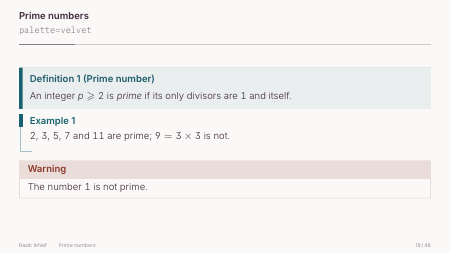
velvet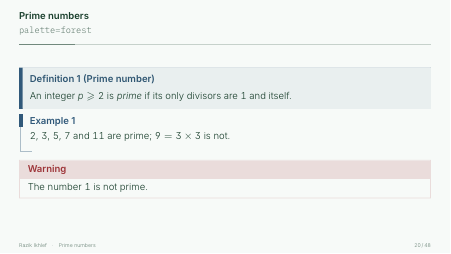
forest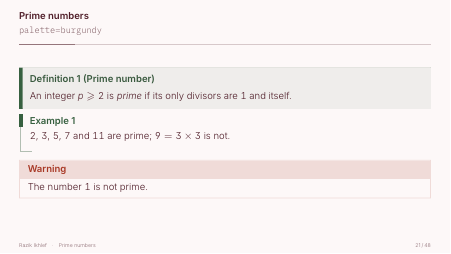
burgundy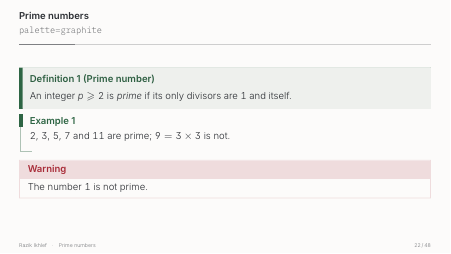
graphite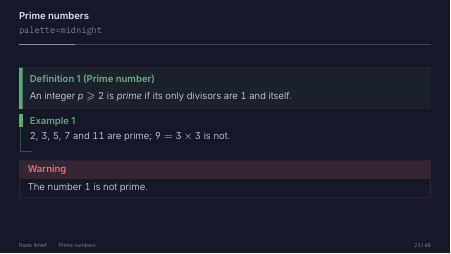
midnight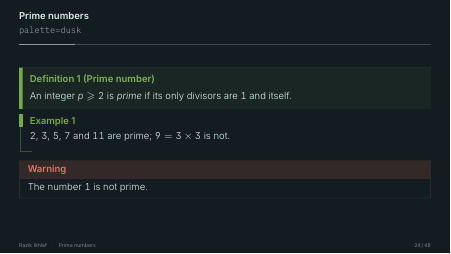
dusk\usetheme[palette=petrol]{Celestia}Note: the midnight and dusk palettes use a dark background. They work well for presentations projected in dimly lit rooms.
Palettes of versions 1.x
The fifteen other palettes of versions 1.x are still accepted, so that existing presentations and the preset styles that use them keep their colors: chalk, copper, horizon, imperial, lumiere, manuscript, mineral, obsidian, oxford, prestige, royal, sakura, sapphire, steel and velours.
Custom palette
The custompalette option
Defines a fully custom palette by specifying six hex color codes (without the #) in order: primary, accent, standard block, example block, alert block, background.
\usetheme[
    custompalette={2C3E50,E74C3C,3498DB,27AE60,E67E22,ECF0F1}
]{Celestia}
For a dark palette, add light=false: only the dark palettes provided switch the text to the regular weight by themselves.
Individual colors
For finer control, each color can be overridden individually (hex codes without the #):
- maincolor: primary color for text and headings;
- accentcolor: secondary color for decorative elements;
- backgroundcolor: slide background color;
- codebackgroundcolor: background color for code blocks;
- blockcolor: color for standard blocks (theorem, property, etc.);
- examplecolor: color for example blocks (definition, example, etc.);
- alertcolor: color for alert blocks;
- remarkcolor: color for remarks;
- methodcolor: color for methods, activities, applications and exercises.
\usetheme[
    maincolor=045549,
    accentcolor=E63946,
    backgroundcolor=FAFAFA,
    blockcolor=1A3B52
]{Celestia}
The background of a type of block is always computed from its color, so it follows a redefined color.
Accessible named colors
The colors of the active palette are exposed globally as LaTeX color names, directly usable in TikZ, \color{...}, \textcolor{...}, etc. Their value automatically follows the selected palette: there is no need to copy the hexadecimal code by hand.
main: primary color;accent: secondary color;background: slide background color;blockcolor,examplecolor,alertcolor: colors of the standard blocks, the examples and the alerts;remarkcolor,methodcolor: colors of remarks and methods;blockbackground,examplebackground,alertbackground: interior background colors of the standard blocks, the examples and the alerts, computed from the active block style;emphasis,decoration: colors resolved according to theemphasisanddecorationoptions;accenttext: the accent color, darkened (or lightened on a dark background) just enough for legible text;emphasistint: the pale tint of the section pages and of the discs, matched toemphasis.
\begin{tikzpicture}
    \fill[background] (0,0) rectangle (2,1);
    \draw[main, thick] (0,0) -- (2,1);
    \node[fill=accent, text=background] at (1,0.5) {Text};
\end{tikzpicture}
The unicolor option
Enables a monochromatic mode in which the accent color is used for all elements (blocks, items, decorations). Only alerts keep their color.
\usetheme[unicolor]{Celestia}The emphasis and decoration options
These two options control the colors used for emphasis elements (headings, items) and decorations (rules, ornaments), respectively.
The emphasis option
Default: main
- main: headings and items use the primary color. The decoration color is then automatically set to
accent; - accent: headings and items use the accent color, darkened if needed to stay legible (a contrast of at least 4.5:1); the section pages and the discs take a pale tint of the accent.
The decoration option
Default: follows the value of emphasis
Allows the decoration color to be set independently (main or accent).
\usetheme[emphasis=accent, decoration=main]{Celestia}List marks and enumeration numbers take the decoration color. The numbers are set in the weight of the text; to make them bold:
\setbeamerfont{enumerate item}{series=\bfseries}Fonts
Default fonts
- Serif font (main): Literata (fallback: TeX Gyre Pagella);
- Sans-serif font: Inter with light weights (fallback: TeX Gyre Heros);
- Monospaced font: IBM Plex Mono (fallback: TeX Gyre Cursor).
Font customization
- serifface: main serif font (
literataby default); - seriffaceoptions:
fontspecoptions for the serif font; - sansface: sans-serif font (
interby default); - sansfaceoptions: options for the sans-serif font (empty by default; the theme automatically applies
Scale=0.88and a light weight depending on the engine); - monoface: monospaced font for code (
plex-monoby default); - monofaceoptions:
fontspecoptions for the mono font.
\usetheme[
    serifface=EB Garamond,
    seriffaceoptions={Scale=1.1},
    sansface=Montserrat,
    monoface=Fira Code
]{Celestia}
To disable serif font loading entirely: serifface=none.
With pdfLaTeX, serifface, sansface and monoface name a font package, which receives the options seriffaceoptions, sansfaceoptions and monofaceoptions. Some packages replace the font only with an option: sansface=lato, sansfaceoptions=defaultsans.
Engine differences for font lookup
LuaLaTeX and XeLaTeX both use fontspec, but their font discovery mechanisms differ. LuaLaTeX maintains its own font database (luaotfload) and reliably finds fonts by family name (e.g. Source Sans 3). XeLaTeX relies on the system libraries (fontconfig on Linux, Core Text on macOS), which may not recognize the same name.
If a custom font is not found, the theme falls back to the TeX Gyre family and emits a warning. To avoid the fallback on XeLaTeX, you can:
- use the exact file name instead of the family name:
sansface=SourceSans3-Regular.otf; - check the name registered in fontconfig with
fc-list | grep "Source"; - prefer LuaLaTeX for the most reliable font discovery.
The allserif option
Uses the serif main font as the default body font and activates Beamer's serif font theme.
\usetheme[allserif]{Celestia}The semibold option
Enables semibold (weight 600) as the bold series for the main and sans-serif fonts. With pdflatex, this uses \DeclareFontSeriesDefault. With LuaLaTeX or XeLaTeX, the option BoldFeatures={Weight=600} is added to the fontspec options.
Default: true
Whenever the text is in the regular weight (light=false, dark palettes, allserif option), the default becomes false: bold text is set in Bold (weight 700), which keeps the same contrast between text and bold as with the light weight. The semibold option, given explicitly, restores the semibold weight.
\usetheme[semibold=false]{Celestia}The light option
Uses lighter font weights for the body text (weight 300 for the sans-serif font with LuaLaTeX/XeLaTeX, or the light option for Inter with pdflatex). Also applies a lighter weight to the monospaced font.
Default: true
With the dark palettes of the theme, the text is set in the regular weight, which reads better in light on dark, and bold text in Bold. The light option, when given explicitly, restores the light weight there.
The light weight suits reading on a screen; for projection in a classroom, light=false sets the text, the monospaced font and the formulas in the regular weight, and bold text in Bold (see the semibold option).
\usetheme[light=false]{Celestia}Math font
The mathface option
Sets the math font. By default, formulas are set in Inter, the text font: letters, digits and Greek letters take the weight of the text (light or regular, depending on the light option), with the three engines. The other symbols remain those of Computer Modern. If unicode-math is loaded before the theme, as in documents produced by Pandoc, the same fonts are set through it. For the other presets, LuaLaTeX and XeLaTeX use unicode-math; with pdflatex, legacy packages are loaded instead.
Default: inter. The theme falls back to iwona with the allserif option, with a sans-serif font other than Inter, or when the Type 1 fonts of the inter package are not installed.
Built-in presets
- inter: Inter, the text font (default);
- iwona: Iwona math font;
- kurier: Kurier math font;
- pagella: TeX Gyre Pagella Math (
mathpazowith pdflatex); - termes: TeX Gyre Termes Math (
newtxmathwith pdflatex); - stix: STIX Two Math (
stix2with pdflatex); - libertinus: Libertinus Math (
libertinust1mathwith pdflatex); - fira: Fira Math (LuaLaTeX and XeLaTeX;
iwonawith pdflatex); - noto: Noto Sans Math (LuaLaTeX and XeLaTeX;
iwonawith pdflatex); - mtpro2: MathTime Professional 2 (loaded via the
mtpro2package with both engines).
Any other value is passed directly to \setmathfont (LuaLaTeX/XeLaTeX) or \RequirePackage (pdflatex).
\usetheme[mathface=pagella]{Celestia}The mathfaceoptions option
Additional options passed to \setmathfont (LuaLaTeX/XeLaTeX only).
\usetheme[mathface=pagella, mathfaceoptions={Scale=1.05}]{Celestia}Layout
Margins
The margin option
Sets the left and right margin of the slide content area.
Default: 2em
\usetheme[margin=1.5em]{Celestia}Lists
The listflush option
A list opening a slide, a block or a column has its bullet or number on the margin, in line with the title. A list introduced by a sentence, a nested list and a quotation keep their indent. The quiz environment follows the same rule.
Default: true
With listflush=false, every list keeps the indent of the previous versions. The option can also be set for the rest of the document, with \celestiaset{listflush=false}, or for one slide, with the frame option celestia={listflush=false}.
\usetheme[listflush=false]{Celestia}In columns, the [T] option of \begin{columns} aligns the first line of each column. With [t], a list at the top of a column starts one line lower than the text of the next column: this is how Beamer works.
Frame title style
The frametitle option
Sets the visual style of each slide's frame title.
Default: ruled
Available values
- ruled: short rule under the title, continued by a hairline across the text width (default);
- subtle: title with a short underline rule;
- plainrule: title with a hairline across the text width;
- plain: simple left-aligned title with no decoration;
- cosmic: title with a horizontal decorative rule and diamond ornament;
- line: title with a full-width horizontal rule;
- gradient: title on a pale full-width band;
- clean: colored vertical bar to the left of the title;
- elegant: title on a full-width colored background, in the weight of the
headweightoption; - leftbar: vertical bar on the left edge of the page, spanning the full height of the title.

ruled
subtle
plainrule
plain
cosmic
line
gradient
clean
elegant
leftbar\usetheme[frametitle=elegant]{Celestia}Every style supports a subtitle via \framesubtitle{...}.
Title spacing
Two options, frametitlepadding and frametitlebottomskip, fine-tune the title spacing regardless of the selected style. They are useful for compacting the title area to gain vertical space without changing the style's aesthetics.
- frametitlepadding=
dim: internal padding (top and bottom) of the title box. Default depends on the style (1.35emfor most). - frametitlebottomskip=
dim:\vskipadded after the title, typically negative (pulls content up). The default depends on the style: the content starts one line of text under the title with the ten styles. The more negative the value, the smaller the space after the title. An explicit user-supplied value takes priority over all defaults.
\usetheme[frametitle=subtle, frametitlepadding=0.5em,
          frametitlebottomskip=-1.5em]{Celestia}
Note: the effect of frametitlebottomskip can be masked on short frames, where beamer vertically centers the content. The theme sets this content a little above the middle: one third of the free space above, two thirds below. For strict top alignment, use the [t] option of \begin{frame} or of the class.
Title page
The title page shows the subject, the title in a large size and the subtitle. A rule separates them from the author, the institute and the date; it is not drawn when these three fields are empty.
A title longer than three lines takes the whole text width. If it is still longer than three lines, or if the page cannot hold it, it gets smaller, down to half its size. At 14pt, the subtitle, the author, the institute and the date fill most of the page: keep the title under three lines there.
The titlealign option
Sets the alignment of the title page content.
Default: left
Available values: left, center, right
\usetheme[titlealign=center]{Celestia}left
center
rightThe titlebackground option
Specifies a background image (displayed at reduced opacity) for the title page.
\usetheme[titlebackground=images/background.jpg]{Celestia}The \subject command
Defines a subject line displayed in spaced capitals above the main title on the title page and embedded in the PDF metadata.
\subject{Computer Science}
\title{Introduction to Graph Theory}
The \titlegraphic command
Places an image, a logo for instance, on the title page: top right, or above the subject when the content is centered.
\titlegraphic{\includegraphics[height=1.2cm]{logo}}The motif option
Draws a motif of pale discs in the bottom right corner of the title page, of the section and subsection pages and of the standout slides. On the title page, an image given with titlebackground replaces it.
Default: true
\usetheme[motif=false]{Celestia}Heading style
Font family
The headstyle option
Sets the font family used for headings.
Default: sffamily
Available values: sffamily (sans-serif), rmfamily (serif)
Font shape
The headshape option
Sets the font shape for headings.
Default: normal
Available values: normal, sc (small caps), it (italic)
Font weight
The headweight option
Sets the font weight of frame titles.
Default: bfseries
Available values: bfseries (bold), mdseries (medium)
The titleweight option
Sets the font weight of the large titles: the title of the title page and the titles of the section and subsection pages.
Default: mdseries
Available values: mdseries (the weight of the text, light by default), bfseries (bold)
Block title weight
The blocktitleweight option
Sets the font weight for tcolorbox block titles.
Default: bfseries
Available values: bfseries (bold), mdseries (medium)
Heading sizes
The theme allows each heading element to be sized independently. In addition to the standard LaTeX sizes, Celestia defines intermediate sizes for finer control:
- titlesize: main title on the title page (
Hugeby default); - frametitlesize: frame title (
normalsizeby default); - sectiontitlesize: section title (
hugeby default); - subtitlesize: subtitle (
largeby default); - footertextsize: footer text (
tinyby default).
Available sizes
The standard LaTeX sizes are available: tiny, scriptsize, footnotesize, small, normalsize, large, Large, LARGE, huge, Huge.
Celestia adds an intermediate size between each consecutive pair:
tinyscriptsize(between tiny and scriptsize);scriptsizefootnotesize(between scriptsize and footnotesize);footnotesizesmall(between footnotesize and small);smallnormalsize(between small and normalsize);normalsizelarge(between normalsize and large);largeLarge(between large and Large);LargeLARGE(between Large and LARGE);LARGEhuge(between LARGE and huge);hugeHuge(between huge and Huge).
\usetheme[
    titlesize=hugeHuge,
    frametitlesize=large,
    sectiontitlesize=LARGEhuge,
    footertextsize=scriptsize
]{Celestia}
Full example
\usetheme[
    headstyle=rmfamily,
    headshape=sc,
    headweight=mdseries,
    titleweight=bfseries,
    blocktitleweight=bfseries
]{Celestia}
Footer
The footerstyle option
Sets the footer style (hidden on the title slide).
Default: info
Available values
- info: author and title on the left, slide number on the right (default);
- minimalist: discreet slide number in the bottom-right corner;
- prestige: three columns (author, title, slide number) separated by middle dots;
- cosmic: three columns separated by diamond ornaments;
- badge: slide number in a colored tag on the bottom right, author and title on the bottom left;
- classic: bar divided into four alternating colored zones (author / title / date / slide number);
- fullbar: fully colored bar, four entries separated by dots;
- ruled: three columns under a hairline drawn across the text width;
- framed: three columns under a hairline drawn across the full page width;
- boxed: three columns, slide number in a tinted tag;
- boxedruled: hairline across the text width and slide number in a tinted tag.
In the footers with several columns, a long author and title can touch: give them a short form in the optional argument of \author and \title.

info
minimalist
prestige
cosmic
badge
classic
fullbar
ruled
framed
boxed
boxedruledThe slide number reads “12 / 40” (current slide, then total), except in the minimalist style, which gives the current number only.
\usetheme[footerstyle=info]{Celestia}The progressbar option
Adds a progress bar at the bottom of each slide. For the info and minimalist styles, the bar is natively integrated into the footer. For other styles, it is overlaid at the bottom of the page.
Default: false
\usetheme[progressbar]{Celestia}Appendix
Slides placed after the \appendix command do not count in the displayed total: the slide number and the progress bar refer to the main part, and the appendix slides are numbered separately. Corrections or extra material can thus be placed at the end of a presentation without distorting the numbering.
\begin{frame}{Conclusion}
    ...
\end{frame}

\appendix

\begin{frame}{Corrections}
    ...
\end{frame}
The shownavigation option
Displays the Beamer navigation symbols above the footer, on the right (disabled by default).
\usetheme[shownavigation]{Celestia}Table of contents
Section numbers sit in a column of fixed width, so that the titles line up. The space between two sections shrinks by itself when the list is long.
The compacttoc option
Reduces the vertical spacing between entries in the table of contents.
\usetheme[compacttoc]{Celestia}The twocoltoc option
Automatically distributes sections across two columns.
\usetheme[twocoltoc]{Celestia}The \twocolumntoc command
Provides manual control over the two-column distribution by specifying section ranges.
\twocolumntoc[1][5][10]This example places sections 1 through 4 in the left column and sections 5 through 10 in the right column.
Blocks
Block types
Three Beamer block types are available, each associated with a semantic color:
\begin{block}{Block title}
    Standard block content (blockcolor)
\end{block}

\begin{exampleblock}{Example}
    Example block content (examplecolor)
\end{exampleblock}

\begin{alertblock}{Warning}
    Alert block content (alertcolor)
\end{alertblock}
Block style
The block option
Sets the design of blocks.
Default: roles
With the value roles, each family of blocks receives the style suited to its role in the talk: a panel for definitions and theorems, a mark beside the title for examples, remarks and activities, a rule under the title for exercises (see “Styles per family of blocks”). Any other value gives the same style to all blocks.
tcolorbox styles
- callout: sidebar in the block color, colored title and text on a pale panel;
- line: the same sidebar, colored title, no background;
- soft: colored title on a pale background in the hue of the block;
- shaded: title on a strong band, text on a pale background of the same hue;
- ruled: headed rule under the title, as under the frame titles, on a pale background;
- underline: title underlined by a rule of its own length, on a pale background;
- discs: three discs in the corner of the block, echoing the motif of the title page, on a pale background;
- plain: frame in the block color, title on a solid band;
- card: the same frame with square corners, text on a pale background;
- ribbon: sidebar, title on a pale band, text on the page background;
- framed: title on a pale band, thin frame in the same color as the band;
- mast: thick stroke beside the title, continued by a hairline that runs along the text and ends in a hook under the last line, no background;
- masthead: the thick stroke beside the title, alone;
- mastbox: the thick stroke beside the title and a hairline that frames the whole block;
- bracket: thin bracket along the left edge of the block, no background;
- legend: thin frame, title set on the line of the frame;
- legendbox: the same, with the title in a small box;
- outline: thin frame around the title and the text, no background;
- badge: title in a solid label, astride the edge of a framed pale panel;
- softbadge: title in a pale label, astride the edge of a pale panel with no frame.

callout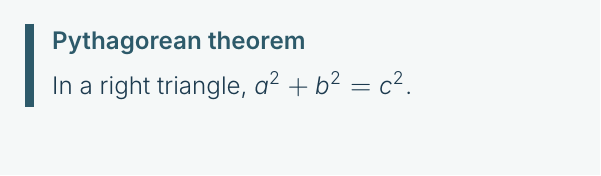
line
soft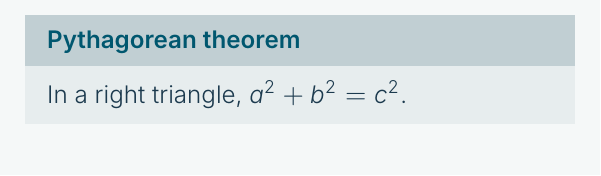
shaded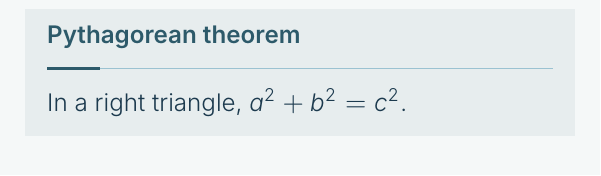
ruled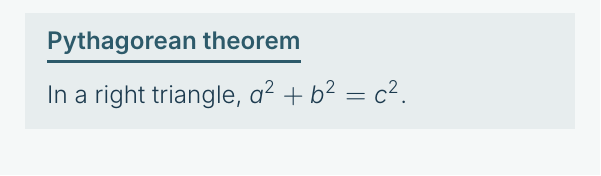
underline
discs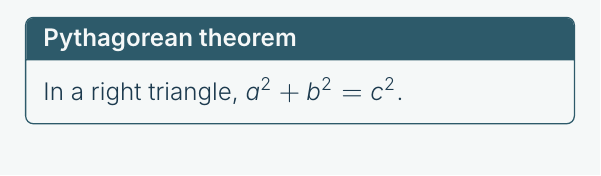
plain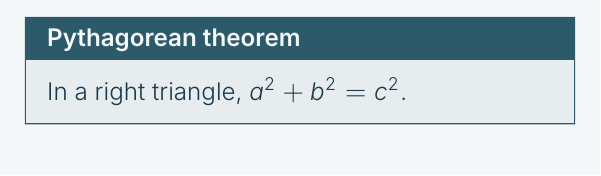
card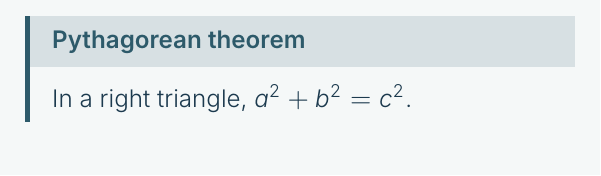
ribbon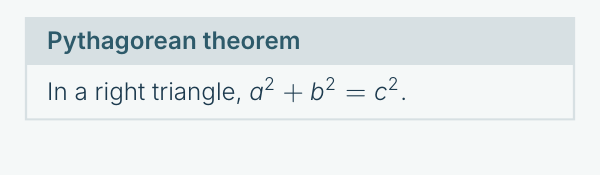
framed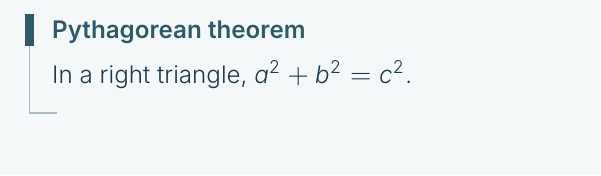
mast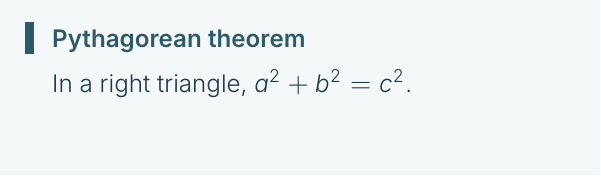
masthead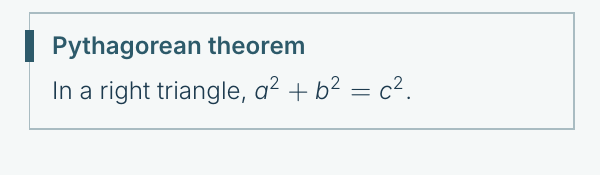
mastbox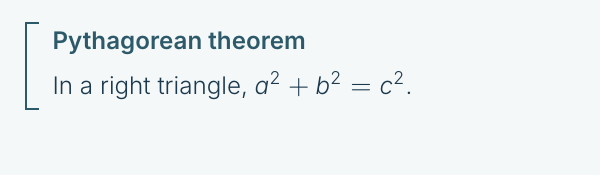
bracket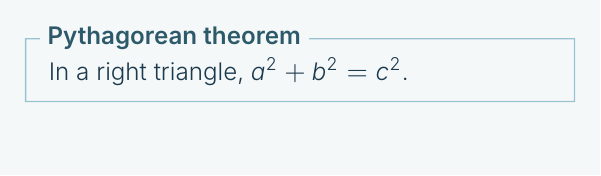
legend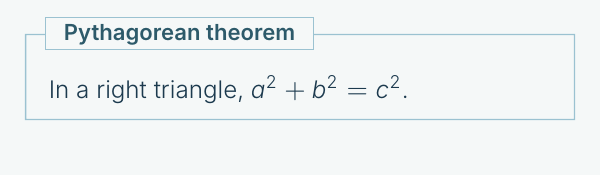
legendbox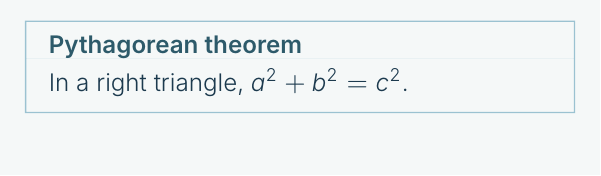
outline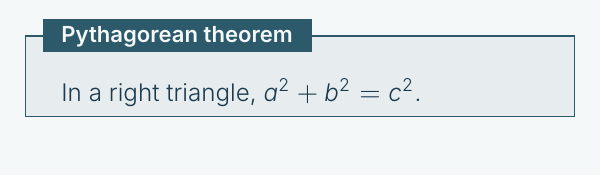
badge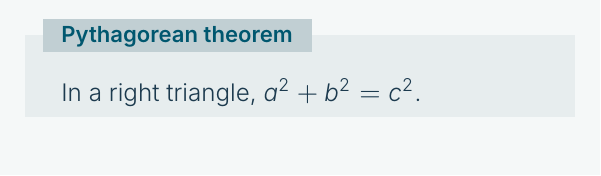
softbadge\usetheme[block=line]{Celestia}The blockfill option
Adds or removes the tinted background of blocks. Each style has its natural value: the line, plain, ribbon, framed and outline styles have no background; the callout, card, soft, shaded, ruled, underline, discs, badge and softbadge styles have one. The option blockfill (or blockfill=true) adds the background, blockfill=false removes it. The discs style always keeps its background; the mast, masthead, mastbox, bracket, legend and legendbox styles never have one.
\usetheme[blockfill=false]{Celestia}
\usetheme[block=ruled, blockfill=false]{Celestia}
\usetheme[block=line, blockfill]{Celestia}
The blockcorners option
Sets the shape of the corners of the callout, plain, card, framed and outline styles: rounded (the natural value of plain) or sharp (the natural value of the other four). With callout, the sidebar follows the rounding.
\usetheme[blockcorners=rounded]{Celestia}
\usetheme[block=plain, blockcorners=sharp]{Celestia}
Block colors
Each type of block has its own color, the same in every style: it shows in the title, the bar or the band, and the background of the block is a pale tint of it: the block color mixed into the page background, at 7 % under the text and 26 % in the title bands. Standard blocks, examples and alerts take the blockcolor, examplecolor and alertcolor of the palette. Remarks and methods receive two colors designed for each palette, remarkcolor and methodcolor. With a custom palette, remarks take the text color and methods the accent color.
Names from earlier versions
The following names are still accepted: bar (line with a background), fullbar (ribbon with a background), noback (soft without a background) and sober (soft).
Native Beamer styles
- native: native Beamer rounded blocks with a colored background;
- native-shadow: native Beamer rounded blocks with a drop shadow;
- native-default: default Beamer blocks (rectangular).
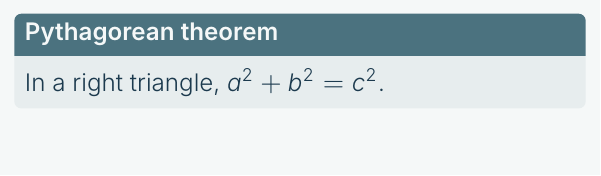
native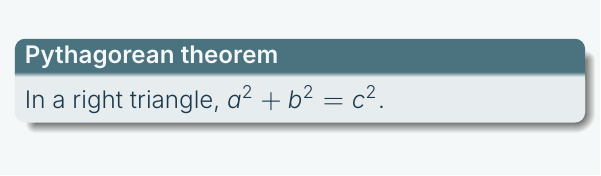
native-shadow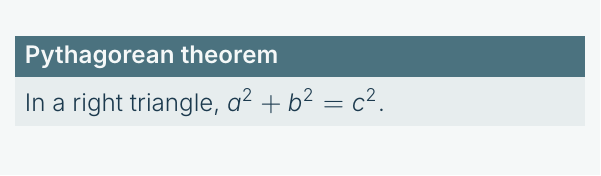
native-defaultThese three styles rely on the blocks of Beamer and not on tcolorbox: the blockfill and blockcorners options do not apply to them.
\usetheme[block=native]{Celestia}Block opacity options
Giving a value to one of the following options restores, for the style concerned, the background of versions 1.x: the block color mixed with the page background in the given proportion (decimal value between 0 and 1). With auto, the default, each palette keeps the background designed for it:
- shadedblockopacity: opacity of the title band for the
shadedstyle (0.30gives the look of versions 1.x); - soberblockopacity: opacity for the
soberstyle (0.18gives the look of versions 1.x); - softblockopacity: opacity for the
softstyle (0.18gives the look of versions 1.x); - barblockopacity: opacity for the
barstyle (0.05gives the look of versions 1.x).
\usetheme[block=sober, soberblockopacity=0.25]{Celestia}Styles per family of blocks
The blocks and the environments of the theme fall into twelve families, according to their role in the talk. Each family has its own option. With block=roles, the default, the families receive the styles of the last column.
| Family | Option | Color | Environments | Style |
|---|---|---|---|---|
| Definitions | definitionblock |
examplecolor |
definition |
callout |
| Results | theoremblock |
blockcolor |
theorem, proposition, property, lemma, corollary |
callout |
| Methods | methodblock |
methodcolor |
method |
callout |
| Alerts | alertblock |
alertcolor |
alertblock |
framed |
| Standard blocks | standardblock |
blockcolor |
block |
framed |
| Example blocks | nativeexampleblock |
examplecolor |
exampleblock |
framed |
| Proofs | proofblock |
blockcolor |
proof |
mast |
| Examples | exampleblock |
examplecolor |
example |
mast |
| Remarks | remarkblock |
remarkcolor |
remark |
mast |
| Activities | activityblock |
methodcolor |
activity, application |
mast |
| Exercises | exerciseblock |
methodcolor |
exercise |
ruled |
| Summaries | summaryblock |
blockcolor |
summary |
card |
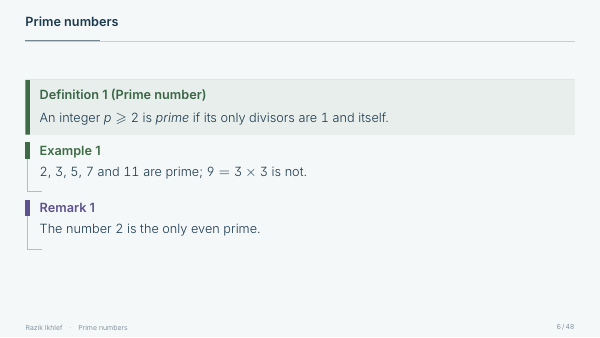
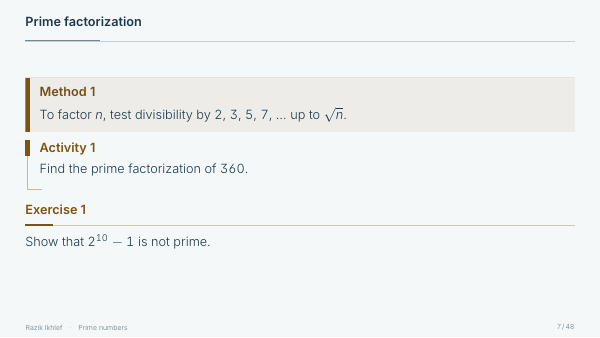
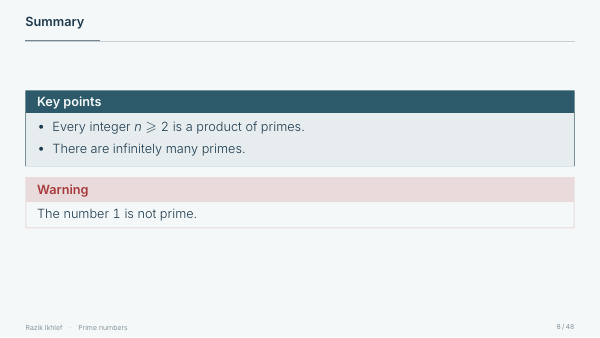
Four designs thus share the page. What must be known sits on a pale panel with a side bar for definitions, results and methods (callout), which only the color tells apart; alerts and standard blocks have their title on a pale band, within a thin frame (framed). What goes with it (examples, remarks, proofs, activities, applications) only has a mark beside the title, continued by a hairline that ends in a hook under the text (mast). Exercises have a rule under the title, with no background (ruled with the word nofill). The summary, which closes a part, is the only block to receive a frame with a solid band, on a pale panel (card).
The three native blocks of beamer (block, exampleblock and alertblock) share this frame with a title band, each in its own color. Each has its own option: standardblock, nativeexampleblock and alertblock. The exampleblock option, for its part, only sets the example environment. The plural environments, such as definitions or exercises, follow their family. An environment created with \newtheorem follows the family of results, or that of examples when it is declared after \theoremstyle{example}.
A family option takes the name of a tcolorbox style from the list above. It overrides the block option.
\usetheme[theoremblock=ruled, proofblock=masthead]{Celestia}
\usetheme[block=line, summaryblock=shaded]{Celestia}
The first line keeps the default distribution and changes two families. The second gives the line style to all blocks except the summaries.
The background and the corners can also be set per family. After the name of the style, in braces, the words fill and nofill add or remove the background, the words rounded and sharp set the corners. Without these words, the family follows the blockfill and blockcorners options.
\usetheme[theoremblock={ruled, nofill}, alertblock={callout, rounded}]{Celestia}The value auto returns a family to the general setting, given by the block option:
\celestiaset{theoremblock=auto}The family options have no effect with the native Beamer blocks.
Special slides
Standout slides
The standout frame option turns a slide into a highlight page with an inverted colored background, without title or footer. It is a frame option only: it is not meant to be passed in the theme options.
\usetheme{Celestia}

\begin{frame}[standout]
    Key takeaway

    \vspace{1em}
    \large --- Quote
\end{frame}
Quote slides
The quote frame option sets a centered quotation, in a large size, on a tinted background, without title or footer.
\begin{frame}[quote]
    The text of the quotation.\\[0.6em]
    {\small Its author}
\end{frame}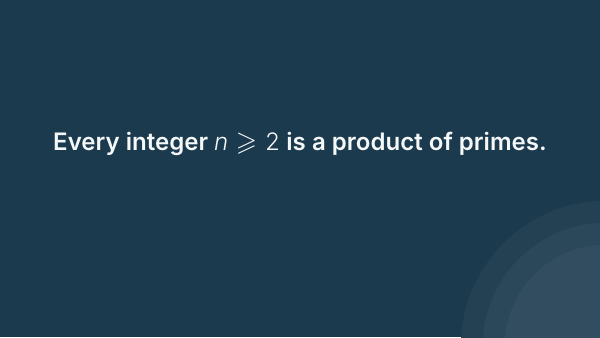
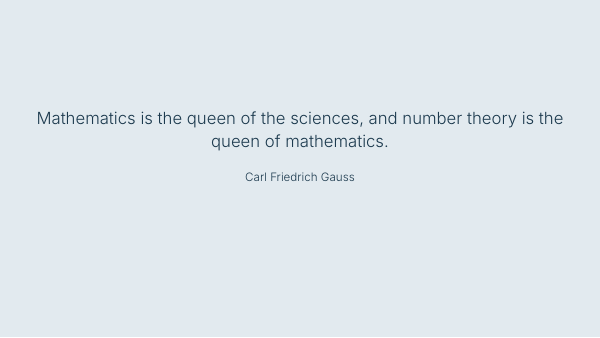
Image slides
\imagepage[caption]{file} creates a slide whose image covers the whole page. The optional caption is shown at the bottom left. The command is used outside of any frame environment.
\imagepage[Site model, scale 1:200.]{images/model.jpg}Section slides
Section slide options
Controls the automatic display of section divider slides. The section title is set in a large size, on a tinted background, under the title of the presentation recalled in spaced capitals.
Defaults: sectionpage=true, sectionnumber=false, subsectionpage=false
- sectionpage: enables or disables automatic section divider slides;
- sectionnumber: puts the section number before the title;
- subsectionpage: adds a slide at the start of every subsection; the section name is recalled above the subsection title.
\usetheme[sectionpage=false]{Celestia}
\usetheme[sectionnumber]{Celestia}
\usetheme[subsectionpage]{Celestia}
The \sectionpage and \subsectionpage commands typeset these slides on demand, inside a frame.
To disable section slides manually within the document:
\AtBeginSection{}The command \celestiaset{sectionpage=false} does the same from the place where it is given, and \celestiaset{sectionpage} brings the section slides back.
Outline on the section slide
The sectiontoc option recalls the outline of the presentation on every section slide: the audience sees where the talk stands. It comes in two forms.
sectiontoc(orsectiontoc=list): the list of sections takes the place of the title. The section that starts is set in a large size, the others in a small size and dimmed. Every line is a link to its section.sectiontoc=dots: the section title stays alone, followed by a row of dots, one per section. The sections already seen are filled, the sections to come are hollow and the section that starts carries its number.
Default: false
\usetheme[sectiontoc, sectionnumber]{Celestia}
\usetheme[sectiontoc=dots]{Celestia}

sectionnumber
sectiontoc
sectiontoc=dotsWhen the list is too long to fit on the slide (beyond a dozen sections, or with titles running over several lines), the theme switches to the dots form by itself. The outline needs two compilations.
Source code
Code handler
The codehandler option
Sets the syntax highlighting backend.
Default: listings
Available values: listings (the listings package) or minted (the minted package, requires Pygments)
\usetheme[codehandler=minted]{Celestia}In french mode, code listing captions are automatically relabeled to Programme.
Code block style
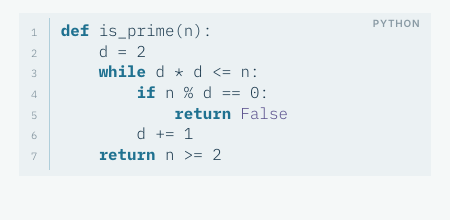
The codestyle option
Sets the visual style of code blocks.
Default: soft
Available values
- soft: a faint background and the name of the language on the right; with line numbers, a hairline in a light shade of the accent color separates the numbers from the code (default);
- minimal: no background and no hairline, the code on the text margin; with line numbers, the same hairline separates the numbers from the code;
- hairline: pale neutral background and a hairline on the left;
- tint: pale neutral background, no frame and no bar;
- bar: colored sidebar on the left;
- frame: thin border with rounded corners;
- macos: macOS-style window chrome with three colored dots;
- box: box with a colored top bar.
soft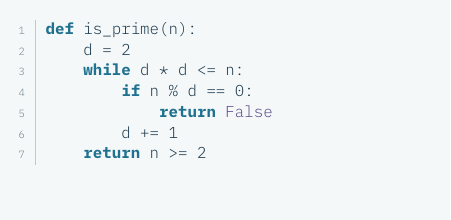
minimal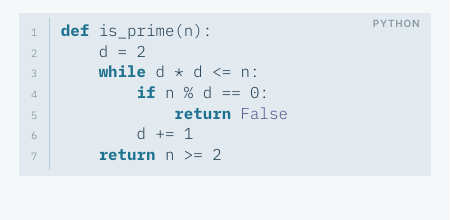
hairline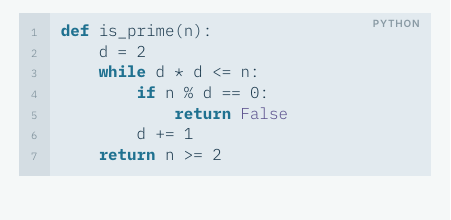
tint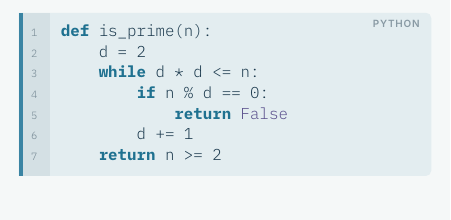
bar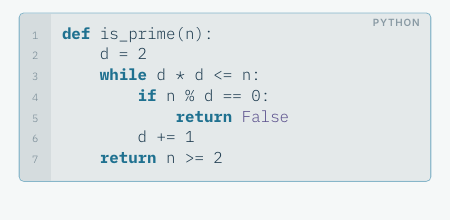
frame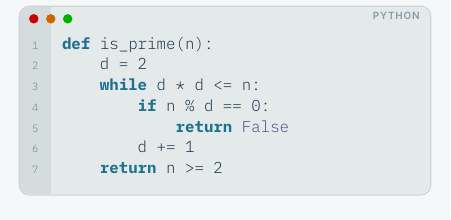
macos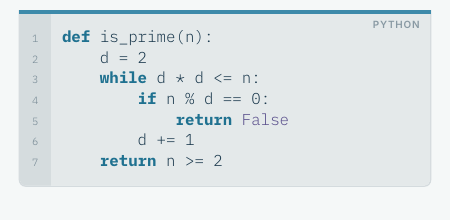
box\usetheme[codestyle=minimal]{Celestia}Code in a block
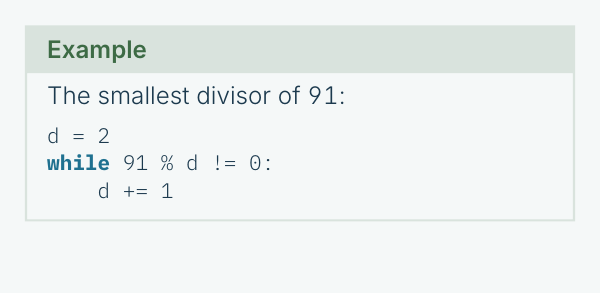
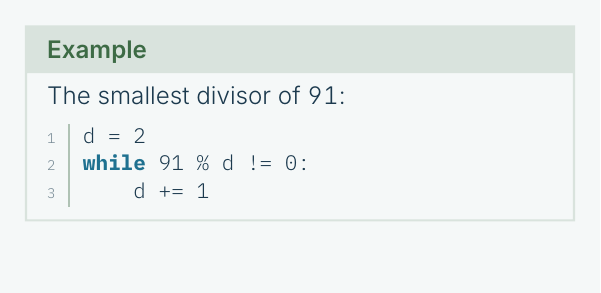
In a block (block, definition, example, etc.), code never has a background: the block already frames it. With soft, minimal, hairline and tint, it lines up with the text of the block; its numbers start from the text margin and a hairline in the color of the block separates them from the code (tint has no hairline, hairline keeps its own even without numbers). The other styles keep their frame or their bar. The name of the language is left out.
The code, code* and results environments
The theme provides three environments, with listings as with minted:
- code: a code block that is always numbered;
- code*: a code block that is never numbered;
- results: console output, in a monospaced font in the color of the text, with no background, hairline, highlighting or numbers, whatever the code style.
The mandatory argument of code and code* gives the language: a listings style (python, latex) or language (C, SQL), a minted lexer (python, c). The optional argument takes the options of the code handler, for instance caption=... with listings.
\begin{code}{python}
for n in range(1, 4):
    print(f"{n} squared is {n * n}")
\end{code}
\begin{results}
1 squared is 1
2 squared is 4
3 squared is 9
\end{results}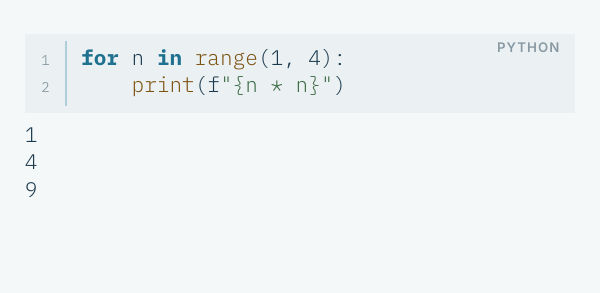
code and resultsA document that already defines its own code or results environment keeps it. The lstlisting and minted environments remain available; their numbers follow the codenumbers option.
Code framing
Frame options
Controls the tcolorbox wrapping around code blocks.
Default: codebox=true (wrapping enabled)
- codebox: enables the code wrapper (on by default; use
codebox=falseto disable); - nocodeframe: keeps the
tcolorboxwrapper but removes the visible border (frame,macosandboxcode styles; thesoft,minimal,hairline,tintandbarstyles have no frame).
\usetheme[codebox=false]{Celestia}Language name and line numbers
The codelabel option
With listings, the name of the language is shown in small capitals in the upper right corner of the code block, with the styles that have a background. It is left out with minimal, which has no background to hold it, inside a block, in narrow blocks, which take up at most 45 % of the width of the slide (one column out of two, for instance), and when the first line of the code is long enough to reach it.
Default: true
\usetheme[codelabel=false]{Celestia}The codenumbers option
Numbers the lines of the code. With minimal and inside a block, the numbers are right-aligned from the text margin; with the styles that have a background, they are centered in a gutter, on the left of the block. The column of numbers takes the width of the largest number: it is exact from the second compilation on.
Default: auto
Available values
- auto: numbers the wide code blocks whose language is known (default);
- true: numbers every block;
codenumbersalone does the same; - false: numbers no block.
A block is wide when it takes up more than 45 % of the width of the slide: a block across the full width is, a block in one column out of two is not. The language is known when the block gives it (style=python, language=C) or when an \lstset has set it, and always with minted. The code and code* environments override this option, and so does a block marked numbers=none (listings) or linenos=false (minted). Inline code and the results environment are never numbered.
\usetheme[codenumbers=false]{Celestia}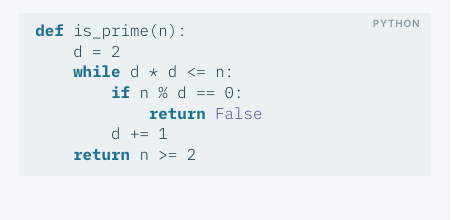
soft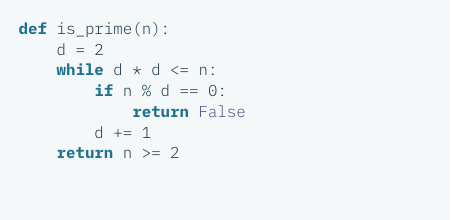
minimal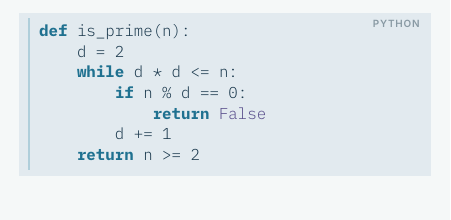
hairline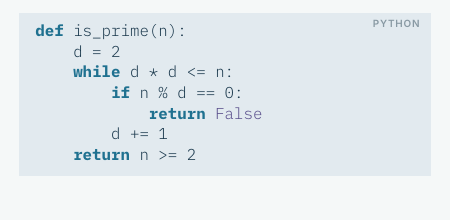
tint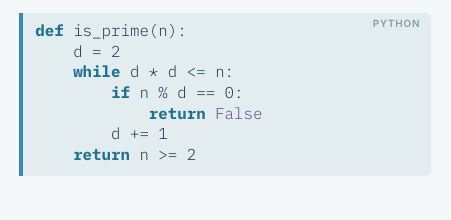
bar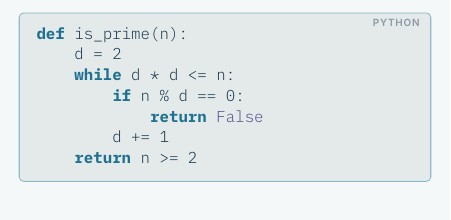
frame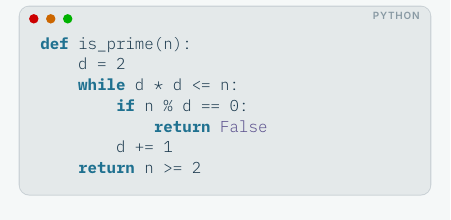
macos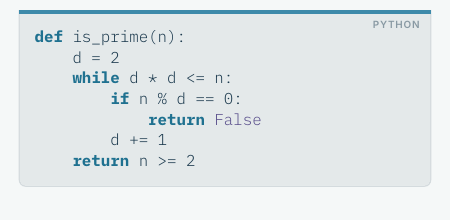
boxBoth options can be changed in the course of the document, for instance to number the code of a single slide:
\begin{frame}[fragile, celestia={codenumbers}]{Program}
    ...
\end{frame}
Usage with listings
\begin{lstlisting}[style=python]
def fibonacci(n):
    if n <= 1:
        return n
    return fibonacci(n-1) + fibonacci(n-2)
\end{lstlisting}
A python style is provided out of the box. Keywords are set in bold in the legible accent color (accenttext), built-in functions (print, len, range, etc.) in the color of methods, the constants True, False and None in the color of remarks, and strings in the color of examples. language=Python gives the same colors.
Text formatting
Special commands
\texttt{text}: monospaced font, slightly smaller than the text;\alert{text}: text in the alert color;\mathterm{x}: formats a mathematical term (bold, block color);\mathdef{x}: formats a mathematical definition (italic, example color);\cverb|code|: inline coloured LaTeX code, used like\verbin afragileframe.
The boldurl option
Renders URLs in bold within hyperlinks.
\usetheme[boldurl]{Celestia}Components
The theme defines the \source, \keyfigure, \tablehead and \imagepage commands only if the document does not already define a command of the same name: in that case, the command of the document is kept.
Source line
\source{...} writes a source line in a small size, above the footer, on the left margin. It takes the place of footnotes: do not use it on a slide that has one.
\begin{frame}{Population}
    ...
    \source{Source: Eurostat, 2025.}
\end{frame}
Key figure
\keyfigure{number}{label} sets a number in a large size, followed by its label. The command takes the width of the column it is placed in.
\begin{columns}
    \begin{column}{0.3\textwidth}
        \keyfigure{298}{square metres}
    \end{column}
    \begin{column}{0.3\textwidth}
        \keyfigure{3}{terraced houses}
    \end{column}
\end{columns}Tables
Table rules take a softened tint of the primary color. \tablehead{...} formats a header cell.
\begin{tabular}{lr}
    \hline
    \tablehead{Variant} & \tablehead{Area} \\
    \hline
    Strip & 312 \\
    Terraces & 298 \\
    \hline
\end{tabular}
Math environments
The theme defines theorem-like environments with a streamlined syntax built on tcolorbox. Each environment accepts key-value options in brackets: title for a subtitle and label for cross-referencing. The style of each environment is that of its family (see “Styles per family of blocks”).
Block-type environments
theorem: theorem;lemma: lemma;proposition: proposition;corollary: corollary;property/properties: property / properties;proof: proof (Beamer environment, unnumbered; the title is set without a final period);summary: summary, titled “Key points”, unnumbered.
Example-type environments
definition/definitions: definition / definitions;example/examples: example / examples.
Other environments
remark/remarks: remark / remarks, in theremarkcolorcolor;method: method, in themethodcolorcolor;activity/activities: activity / activities, in themethodcolorcolor;application/applications: application / applications, in themethodcolorcolor;exercise/exercises: exercise / exercises, in themethodcolorcolor.
If the document or another package already defines an exercise environment, the theme keeps that definition.
The alert color is reserved for alertblock blocks.
Summary
The summary environment typesets the summary of a part, under the title “Key points” (“À retenir” in French). The title option adds a precision in parentheses.
\begin{summary}
    \begin{itemize}
        \item A geometric sequence with ratio $q$ satisfies $u_{n+1} = q \times u_n$.
        \item Its general term is $u_n = u_0 \times q^n$.
    \end{itemize}
\end{summary}
Syntax
\begin{theorem}[title=Pythagorean theorem, label=th:pyth]
    In a right triangle, $a^2 + b^2 = c^2$.
\end{theorem}
This key-value syntax applies to all tcolorbox-based block styles (the default). With the native styles (native, native-shadow and native-default), the environments accept [title=...] alone, without label or tcolorbox options, as well as the usual Beamer syntax:
\begin{theorem}[Pythagorean theorem]
    In a right triangle, $a^2 + b^2 = c^2$.
\end{theorem}
Warning: with tcolorbox blocks, writing [Pythagorean theorem] without title= causes a compilation error.
Each environment also has a starred (unnumbered) variant:
\begin{definition*}[title=Prime number]
    A prime number is a natural number that has exactly
    two distinct divisors.
\end{definition*}
Additional tcolorbox options can be passed directly:
\begin{remark}[title=Important, colback=red!5]
    Content with local customization.
\end{remark}
Overlay specifications
Each environment accepts a Beamer overlay specification between angle brackets, placed immediately after the name:
\begin{definition}<2->[title=Natural numbers]
    The set $\mathbb{N}$ appears from the second overlay.
\end{definition}
The environment counter is frozen across overlays of the same frame, whether you use the <...> syntax or the \pause command. Numbering therefore remains stable from one overlay to the next.
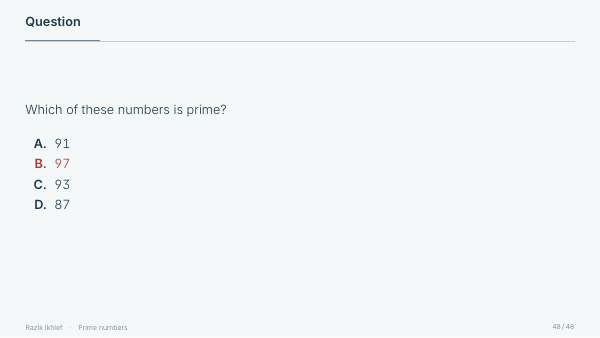
The quiz environment
The quiz environment creates multiple-choice questions with the correct answer revealed on the second overlay.
\begin{quiz}
    \item Answer A
    \item Answer B
    \correct{Answer C (correct answer)}
    \item Answer D
\end{quiz}
The \correct{...} command marks the correct answer, which is highlighted in the alert color on <2>.
Bibliography
The theme provides automatic support for biblatex and natbib. Bibliography entry colors are configured to match the active palette.
\usepackage[backend=biber]{biblatex}
\addbibresource{references.bib}

\begin{frame}{References}
    \printbibliography
\end{frame}
Settings in the course of the document
The options of the theme are given to \usetheme and hold for the whole document. The \celestiaset command and the celestia frame option change a setting for a part of the document or for a single slide. They take the same options as \usetheme, with the same values.
For the rest of the document
Placed between two slides, the \celestiaset command applies to all the slides that follow, until the next change.
\begin{frame}{Lesson}
    ...
\end{frame}

\celestiaset{block=shaded, footerstyle=minimalist}

\begin{frame}{Exercises}
    ...
\end{frame}
As any LaTeX setting, it stays within the group where it is given: between braces, it ends at the closing brace.
{\celestiaset{palette=oxford}
\begin{frame}{First slide in oxford}
    ...
\end{frame}
\begin{frame}{Second slide in oxford}
    ...
\end{frame}
}
For a single slide
The celestia frame option applies to a whole slide: title, content, background and footer. The next slide gets the settings of the document back. The option combines with the other frame options (fragile, plain, standout, etc.).
\begin{frame}[celestia={block=plain, blockfill}]{Summary}
    ...
\end{frame}

\begin{frame}[celestia={palette=midnight}]{A dark slide}
    ...
\end{frame}

\begin{frame}[fragile, celestia={style=stage}]{Program}
    ...
\end{frame}
Inside a slide
In the body of a slide, \celestiaset acts on what follows, until the end of the slide (or of the column, or of the group, where the command stands).
\begin{frame}{Two block styles}
    \begin{block}{Reminder}
        ...
    \end{block}
    \celestiaset{block=ruled}
    \begin{block}{Key point}
        ...
    \end{block}
\end{frame}
The title, the background and the footer of a slide are typeset apart, after its content: to change them, use the celestia frame option, or the \celestiaset command placed before the slide. A warning in the log recalls it.
Settings that can be changed
| Area | Options |
|---|---|
| Blocks | block, blockfill, blockcorners, blocktitleweight, |
theoremblock, definitionblock, proofblock, exampleblock, |
|
remarkblock, methodblock, activityblock, exerciseblock, |
|
alertblock, standardblock, nativeexampleblock, summaryblock |
|
| Preset style | style |
| Colors | palette, custompalette, maincolor, accentcolor, backgroundcolor, |
blockcolor, examplecolor, alertcolor, remarkcolor, methodcolor, |
|
codebackgroundcolor, emphasis, decoration, unicolor |
|
| Frame title | frametitle, frametitlesize, frametitlepadding, |
frametitlebottomskip, headstyle, headshape, headweight |
|
| Footer | footerstyle, footertextsize, progressbar |
| Title page | motif, titlealign, titlebackground, titlesize, subtitlesize, |
titleweight |
|
| Section slides | sectionpage, subsectionpage, sectionnumber, sectiontoc, |
sectiontitlesize |
|
| Code | codelabel, codenumbers |
| Lists | listflush |
The other options are set once and for all in \usetheme: the fonts (sansface, serifface, monoface, mathface, allserif, light, semibold), the language, the margins, the table of contents, the style and the handler of the code, and the choice of the native Beamer blocks. Given to \celestiaset, they are left aside and reported by a warning, and so is an unknown value.
Notes
- A preset style given in the course of the document first resets the settings that a style governs (emphasis, size and alignment of the titles, background and corners of the blocks, styles per family), then applies its own. The options written in the same call override the style.
- The weight of the text is set when the theme is loaded: a dark palette chosen in the course of the document keeps the light weight of the rest of the presentation. The
light=falseoption gives the regular weight to the whole document. - With the native Beamer blocks (
block=native), the block style cannot be changed in the course of the document. Their colors follow the palette.
Options reference
Boolean options
| Option | Default | Description |
|---|---|---|
allserif |
false |
Use serif font throughout |
semibold |
true |
Use semibold (weight 600) as the bold series |
light |
true |
Use light font weights for body text |
unicolor |
false |
Monochromatic mode |
compacttoc |
false |
Compact table of contents |
twocoltoc |
false |
Two-column table of contents |
codebox |
true |
Wrap code blocks in tcolorbox |
nocodeframe |
false |
Keep tcolorbox wrapper, hide border |
codelabel |
true |
Language name in the corner of the code block |
codenumbers |
auto |
Line numbers of the code |
shownavigation |
false |
Show Beamer navigation symbols |
boldurl |
false |
Render URLs in bold |
sectionpage |
true |
Automatic section divider slides |
sectionnumber |
false |
Number before the section title |
subsectionpage |
false |
Automatic subsection slides |
motif |
true |
Motif of the title page and section slides |
listflush |
true |
Mark on the margin for a list at the top |
progressbar |
false |
Footer progress bar |
Key-value options
| Option | Default | Description |
|---|---|---|
language |
english |
Document language |
palette |
nordic |
Color palette |
style |
— | Preset style |
block |
roles |
Block style |
blockfill |
(depends on the style) | Tinted background of blocks |
blockcorners |
(depends on the style) | Block corners |
theoremblock |
auto |
Style of theorems and other results |
definitionblock |
auto |
Style of definitions |
proofblock |
auto |
Style of proofs |
exampleblock |
auto |
Style of examples (example environment) |
nativeexampleblock |
auto |
Style of exampleblock blocks |
remarkblock |
auto |
Style of remarks |
methodblock |
auto |
Style of methods |
activityblock |
auto |
Style of activities and applications |
exerciseblock |
auto |
Style of exercises |
alertblock |
auto |
Style of alert blocks |
standardblock |
auto |
Style of standard blocks |
summaryblock |
auto |
Style of summaries |
frametitle |
ruled |
Frame title style |
footerstyle |
info |
Footer style |
codestyle |
soft |
Code block style |
codehandler |
listings |
Syntax highlighting backend |
titlealign |
left |
Title page alignment |
sectiontoc |
false |
Outline on the section slides |
emphasis |
main |
Emphasis color |
decoration |
(follows emphasis) | Decoration color |
margin |
2em |
Slide margins |
titlebackground |
(empty) | Title page background image |
Color options
| Option | Default | Description |
|---|---|---|
custompalette |
(empty) | Custom palette (6 hex colors) |
maincolor |
(palette) | Main color |
accentcolor |
(palette) | Accent color |
backgroundcolor |
(palette) | Background color |
blockcolor |
(palette) | Standard block color |
examplecolor |
(palette) | Example block color |
alertcolor |
(palette) | Alert block color |
remarkcolor |
(palette) | Remark color |
methodcolor |
(palette) | Method color |
codebackgroundcolor |
(empty) | Code background color |
shadedblockopacity |
auto |
Opacity for the shaded style (1.x background) |
soberblockopacity |
auto |
Opacity for the sober style (1.x background) |
softblockopacity |
auto |
Opacity for the soft style (1.x background) |
barblockopacity |
auto |
Opacity for the bar style (1.x background) |
Font and title options
| Option | Default | Description |
|---|---|---|
serifface |
literata |
Serif font |
sansface |
inter |
Sans-serif font |
monoface |
plex-mono |
Monospaced font |
seriffaceoptions |
(empty) | Serif font options |
sansfaceoptions |
(empty) | Sans-serif font options |
monofaceoptions |
(empty) | Monospaced font options |
mathface |
inter |
Math font |
mathfaceoptions |
(empty) | Math font options |
headstyle |
sffamily |
Heading font family |
headshape |
normal |
Heading font shape |
headweight |
bfseries |
Frame title font weight |
titleweight |
mdseries |
Large title font weight |
blocktitleweight |
bfseries |
Block title font weight |
titlesize |
Huge |
Main title size |
frametitlesize |
normalsize |
Frame title size |
sectiontitlesize |
huge |
Section title size |
subtitlesize |
large |
Subtitle size |
footertextsize |
tiny |
Footer text size |
Available color names
The theme exposes the following color names for use anywhere in the document:
main: primary color;accent: accent color;background: background color;emphasis: emphasis color (depends on theemphasisoption);decoration: decoration color (depends on thedecorationoption);blockcolor: standard block color;examplecolor: example block color;alertcolor: alert block color;remarkcolor: color of remarks;methodcolor: color of methods, activities, applications and exercises;blockbackground: interior background color of standard blocks;examplebackground: interior background color of example blocks;alertbackground: interior background color of alert blocks;codebackground: code background color.
The three ...background colors match exactly the background painted inside the standard blocks, the examples and the alerts, and follow the style of these three families.
\textcolor{accent}{Text in the accent color}
\colorlet{myCustom}{blockcolor!50!background}